
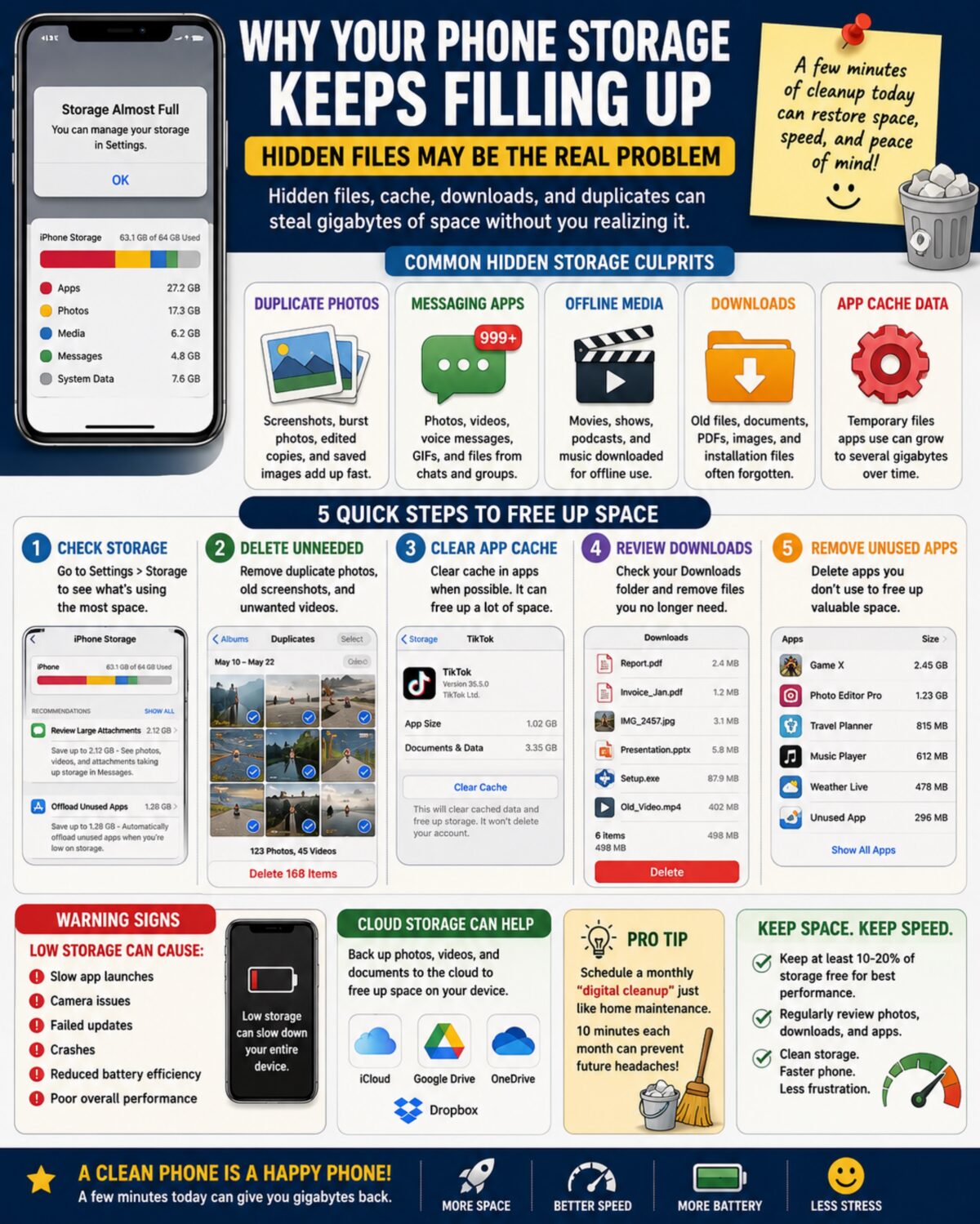
Many smartphone users are experiencing a common frustration: despite deleting photos, apps, and videos, their device continues to display “Storage Almost Full” warnings.
The issue is often caused by hidden storage consumers that accumulate quietly over time. These include cached files, duplicate photos, downloaded attachments, temporary app data, offline media, old backups, and forgotten downloads.
As phones become the primary tool for communication, entertainment, work, banking, photography, and navigation, storage management has become an increasingly important part of device maintenance.
📱 Why This Matters Now
Modern smartphones regularly handle:
* High-resolution photos
* 4K and 8K videos
* Social media content
* Streaming downloads
* AI applications
* Messaging attachments
* Cloud synchronization
* Automatic backups
Many users are surprised to learn that apps often store temporary data that continues growing long after the app has been installed.
Some applications may accumulate several gigabytes of cache data without obvious warning.
⚠️ Common Hidden Storage Culprits
📸 Duplicate Photos
Many people unknowingly save:
* Screenshots
* Burst photos
* Edited copies
* Downloaded images
* Shared images from messaging apps
Thousands of duplicate images can consume significant storage space.
💬 Messaging Apps
Text and messaging platforms often store:
* Photos
* Videos
* Voice messages
* GIFs
* Attachments
Group chats are particularly notorious for consuming storage.
🎥 Offline Media Downloads
Streaming services frequently download:
* Movies
* TV episodes
* Podcasts
* Music playlists
Many users forget these files remain on the device after viewing.
📂 Downloads Folder
Documents, PDFs, images, installation files, and miscellaneous downloads often remain untouched for months or years.
⚙️ App Cache Data
Apps use cache files to improve performance, but these files can grow substantially over time.
Common offenders include:
* Social media apps
* Browsers
* Video streaming platforms
* Shopping apps
* Mapping applications
🛠️ Quick Troubleshooting Steps
Step 1
Open:
Settings → Storage
Review which categories consume the most space.
Step 2
Delete:
* Duplicate photos
* Old screenshots
* Unneeded videos
Video files often provide the fastest storage recovery.
Step 3
Clear app cache where appropriate.
This may free hundreds of megabytes or even multiple gigabytes.
Step 4
Review downloads and remove unnecessary files.
Step 5
Remove unused applications.
Many people have dozens of apps they haven’t opened in months.
☁️ Cloud Storage Considerations
Cloud services can help reduce local storage usage by:
* Backing up photos
* Storing documents
* Syncing files across devices
However, cloud storage should supplement organization—not replace it.
Large amounts of unnecessary data can accumulate in the cloud as well.
🚨 Warning Signs Your Storage Is Affecting Performance
Low storage can contribute to:
* Slow app launches
* Camera problems
* Failed updates
* Crashes
* Reduced battery efficiency
* Poor overall performance
Most devices operate best when a portion of storage remains free.
💡 Pro Tip
Schedule a monthly “digital cleanup” just like routine home maintenance.
Spending 10 minutes each month reviewing photos, downloads, and apps can prevent future storage headaches and keep devices running smoothly.
🔍 Tech Takeaway
Your phone may not be running out of storage because you have too much data.
It may be running out of storage because hidden files have quietly accumulated over time.
A few minutes of cleanup today can restore performance, free space, and extend the useful life of your device.
📱⚡🧹💾 Clean storage. Faster phone. Less frustration.