Categories
Tech and Troubleshooting

QR Codes Are Everywhere — But Scanning the Wrong One Could Lead to Fraud

QR codes have become part of everyday life. They’re used for restaurant menus, parking payments, event tickets, product information, Wi-Fi access, package tracking, digital payments, and countless other services.

While QR codes are convenient, cybersecurity experts are warning about a growing threat known as “Quishing” — phishing attacks that use QR codes instead of traditional links.

Because people cannot immediately see the website hidden inside a QR code, scammers are increasingly using fake codes to redirect victims to fraudulent websites designed to steal passwords, payment information, personal data, and account credentials.

As QR code usage continues expanding, learning how to verify them is becoming an important digital safety skill.

📱 Why This Matters Now

QR code usage exploded during recent years because they allow:

* Contactless payments
* Quick website access
* Mobile ticketing
* Digital menus
* Product authentication
* Event registration

Unfortunately, criminals quickly recognized an opportunity.

Unlike traditional phishing emails, QR code scams often bypass suspicion because people tend to trust printed materials more than unexpected links.

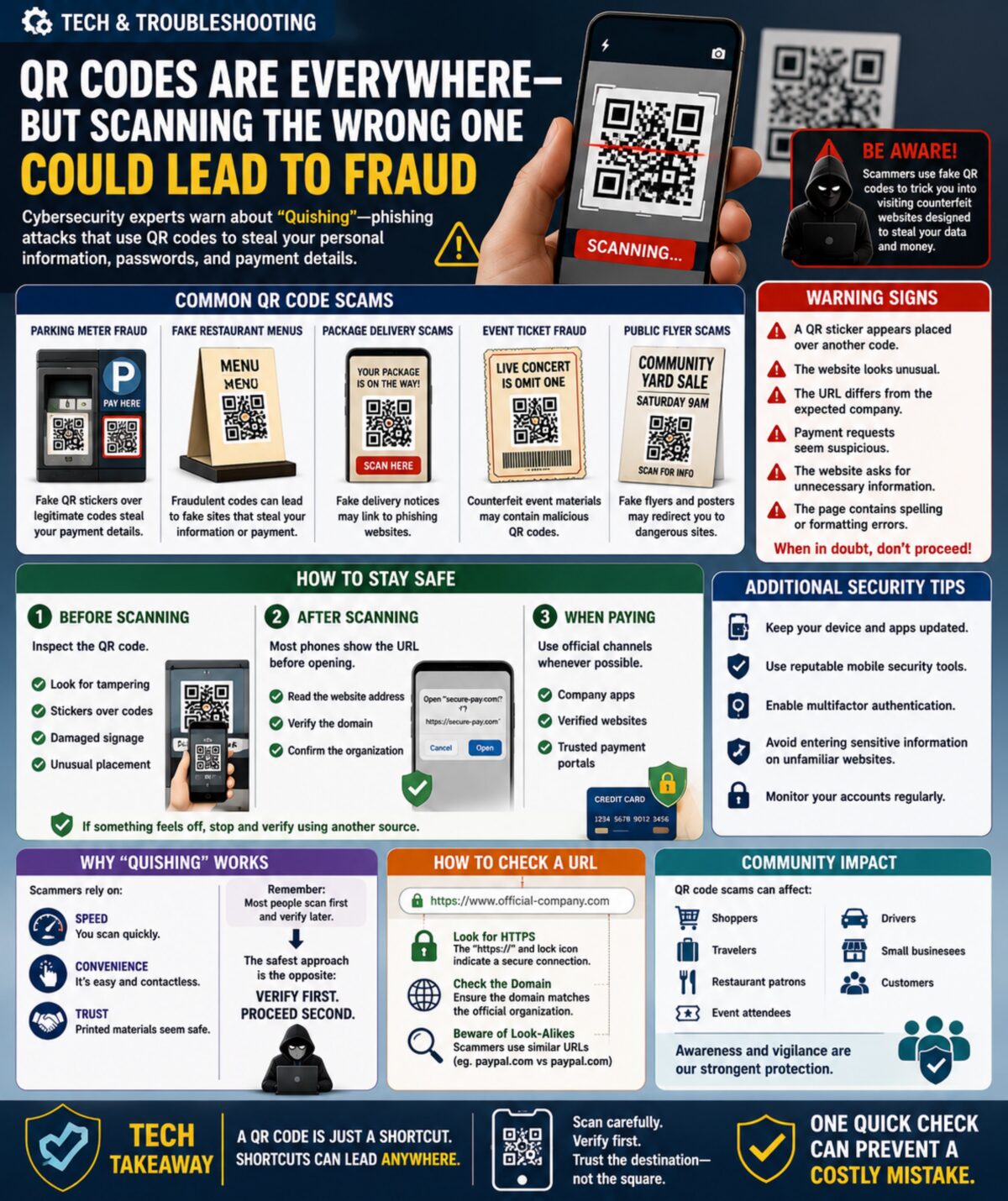
🚨 Common QR Code Scams

Parking Meter Fraud

Scammers place fake QR stickers over legitimate parking payment codes.

Victims believe they’re paying for parking but are actually entering payment information into a fraudulent website.

Fake Restaurant Menus

Fraudulent QR codes can direct users to websites designed to collect payment information or personal data.

Package Delivery Scams

Fake package notices sometimes include QR codes claiming to provide delivery updates.

Event Ticket Fraud

Scammers create counterfeit event materials containing malicious QR codes.

Public Flyer Scams

Fake advertisements, posters, and community notices sometimes contain fraudulent codes that redirect users to dangerous websites.

⚠️ Warning Signs

Be cautious if:

* A QR sticker appears placed over another code.
* The website looks unusual.
* The URL differs from the expected company.
* Payment requests seem suspicious.
* The website asks for unnecessary information.
* The page contains spelling or formatting errors.

Always verify before entering sensitive information.

🔍 How To Stay Safe

Before Scanning

Inspect the QR code.

Look for:

✔ Tampering

✔ Stickers placed over existing codes

✔ Damaged signage

✔ Unusual placement

After Scanning

Most phones display the destination URL before opening.

Take a moment to:

✔ Read the website address

✔ Verify the domain

✔ Confirm the organization

When Paying

Use official:

* Company apps
* Verified websites
* Trusted payment portals

Whenever possible, manually navigate to the organization’s website rather than relying solely on a QR code.

🛡️ Additional Security Tips

* Keep devices updated.
* Use reputable mobile security tools.
* Enable multifactor authentication.
* Avoid entering sensitive information on unfamiliar websites.
* Monitor accounts regularly.

These habits help protect against a wide variety of online threats.

🧠 Why Quishing Works

Scammers rely on:

* Speed
* Convenience
* Trust

Most people scan first and verify later.

Criminals hope you never verify at all.

The safest approach is the opposite:

Verify first. Proceed second.

🌎 Community Impact

QR code scams affect:

* Shoppers
* Travelers
* Restaurant patrons
* Event attendees
* Drivers
* Small business customers

As communities adopt more digital services, awareness becomes one of the strongest forms of protection.

🎯 Tech Takeaway

A QR code is simply a shortcut.

And shortcuts can lead anywhere.

Before entering payment information, passwords, or personal details, take a few seconds to confirm where that QR code is sending you.

Remember:
Scan carefully. Verify first. Trust the destination—not the square.

📱🔍🛡️⚠️ One quick check can prevent a costly mistake.
Categories
Tech and Troubleshooting

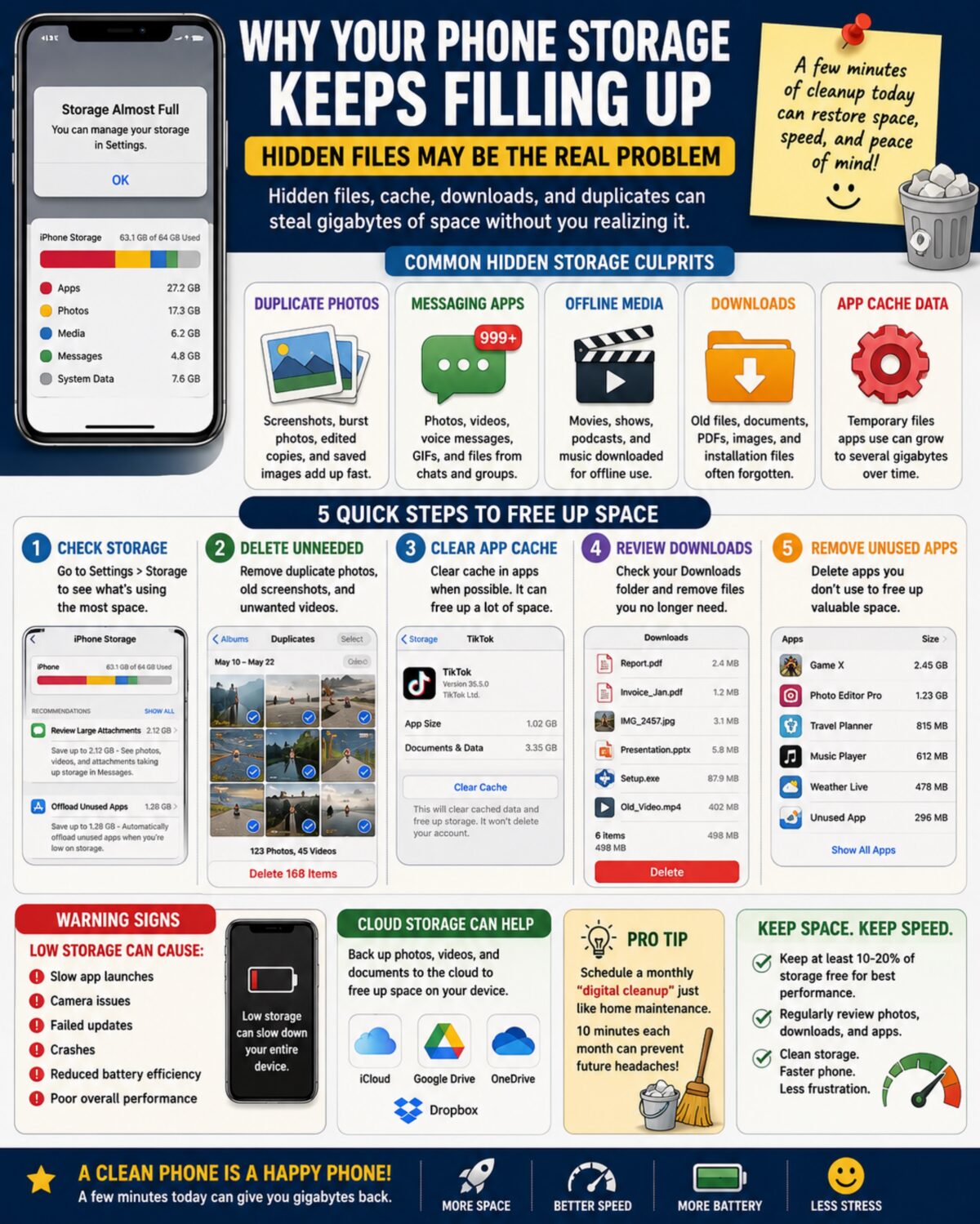
Why Your Phone Storage Keeps Filling Up — Hidden Files May Be the Real Problem

Many smartphone users are experiencing a common frustration: despite deleting photos, apps, and videos, their device continues to display “Storage Almost Full” warnings.

The issue is often caused by hidden storage consumers that accumulate quietly over time. These include cached files, duplicate photos, downloaded attachments, temporary app data, offline media, old backups, and forgotten downloads.

As phones become the primary tool for communication, entertainment, work, banking, photography, and navigation, storage management has become an increasingly important part of device maintenance.

📱 Why This Matters Now

Modern smartphones regularly handle:

* High-resolution photos
* 4K and 8K videos
* Social media content
* Streaming downloads
* AI applications
* Messaging attachments
* Cloud synchronization
* Automatic backups

Many users are surprised to learn that apps often store temporary data that continues growing long after the app has been installed.

Some applications may accumulate several gigabytes of cache data without obvious warning.

⚠️ Common Hidden Storage Culprits

📸 Duplicate Photos

Many people unknowingly save:

* Screenshots
* Burst photos
* Edited copies
* Downloaded images
* Shared images from messaging apps

Thousands of duplicate images can consume significant storage space.

💬 Messaging Apps

Text and messaging platforms often store:

* Photos
* Videos
* Voice messages
* GIFs
* Attachments

Group chats are particularly notorious for consuming storage.

🎥 Offline Media Downloads

Streaming services frequently download:

* Movies
* TV episodes
* Podcasts
* Music playlists

Many users forget these files remain on the device after viewing.

📂 Downloads Folder

Documents, PDFs, images, installation files, and miscellaneous downloads often remain untouched for months or years.

⚙️ App Cache Data

Apps use cache files to improve performance, but these files can grow substantially over time.

Common offenders include:

* Social media apps
* Browsers
* Video streaming platforms
* Shopping apps
* Mapping applications

🛠️ Quick Troubleshooting Steps

Step 1

Open:

Settings → Storage

Review which categories consume the most space.

Step 2

Delete:

* Duplicate photos
* Old screenshots
* Unneeded videos

Video files often provide the fastest storage recovery.

Step 3

Clear app cache where appropriate.

This may free hundreds of megabytes or even multiple gigabytes.

Step 4

Review downloads and remove unnecessary files.

Step 5

Remove unused applications.

Many people have dozens of apps they haven’t opened in months.

☁️ Cloud Storage Considerations

Cloud services can help reduce local storage usage by:

* Backing up photos
* Storing documents
* Syncing files across devices

However, cloud storage should supplement organization—not replace it.

Large amounts of unnecessary data can accumulate in the cloud as well.

🚨 Warning Signs Your Storage Is Affecting Performance

Low storage can contribute to:

* Slow app launches
* Camera problems
* Failed updates
* Crashes
* Reduced battery efficiency
* Poor overall performance

Most devices operate best when a portion of storage remains free.

💡 Pro Tip

Schedule a monthly “digital cleanup” just like routine home maintenance.

Spending 10 minutes each month reviewing photos, downloads, and apps can prevent future storage headaches and keep devices running smoothly.

🔍 Tech Takeaway

Your phone may not be running out of storage because you have too much data.

It may be running out of storage because hidden files have quietly accumulated over time.

A few minutes of cleanup today can restore performance, free space, and extend the useful life of your device.

📱⚡🧹💾 Clean storage. Faster phone. Less frustration.

Categories
Tech and Troubleshooting

Software Updates Are Causing App Crashes — Restart Fixes Most Issues

After recent operating system and app updates, many users are experiencing app crashes, freezes, or slow performance. A simple but often overlooked fix: restart your device after updates. Restarting clears temporary conflicts, resets background processes, and resolves many post-update glitches without deeper troubleshooting.

Frequent OS updates, security patches, and AI-powered features are rolling out faster than ever. Restarting after updates helps prevent lingering bugs and performance issues.

Categories
Tech and Troubleshooting

WhatsApp Cyberespionage Campaign Aug 2025

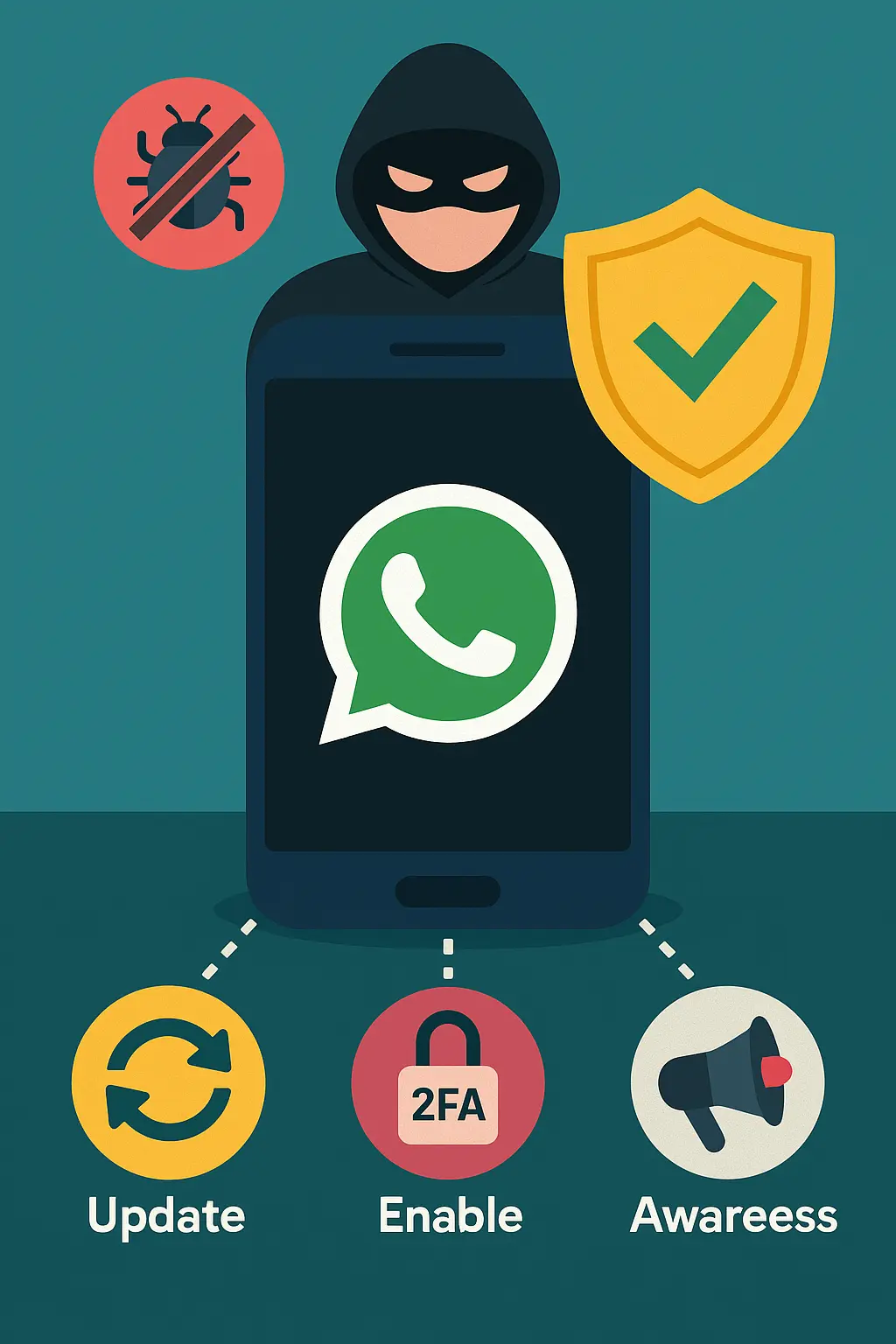
In late August 2025, WhatsApp identified a highly sophisticated hacking campaign that exploited a chain of vulnerabilities in its app and Apple devices, potentially targeting fewer than 200 individuals, including members of civil society organizations. Both iPhone and Android users may have been affected. WhatsApp has since released patches for the vulnerabilities. To protect yourself: ensure your app and device software are fully up to date, avoid clicking unexpected links, enable two-factor authentication (2FA), and scan your device via trusted cybersecurity tools. Let’s also share this alert within our communities to increase awareness and vigilance.

Why It Matters & What You Can Do:

– Protect your privacy: These are not ordinary phishing attempts—they target sensitive individuals.

– Take action: Regularly check for app and OS updates, and apply them promptly.

– Add security layers: Enable 2FA on WhatsApp and equivalent platforms.

– Collaborate: Spread awareness among peers and encourage digital safety habits.

Categories
Tech and Troubleshooting

Traveling with a Laptop

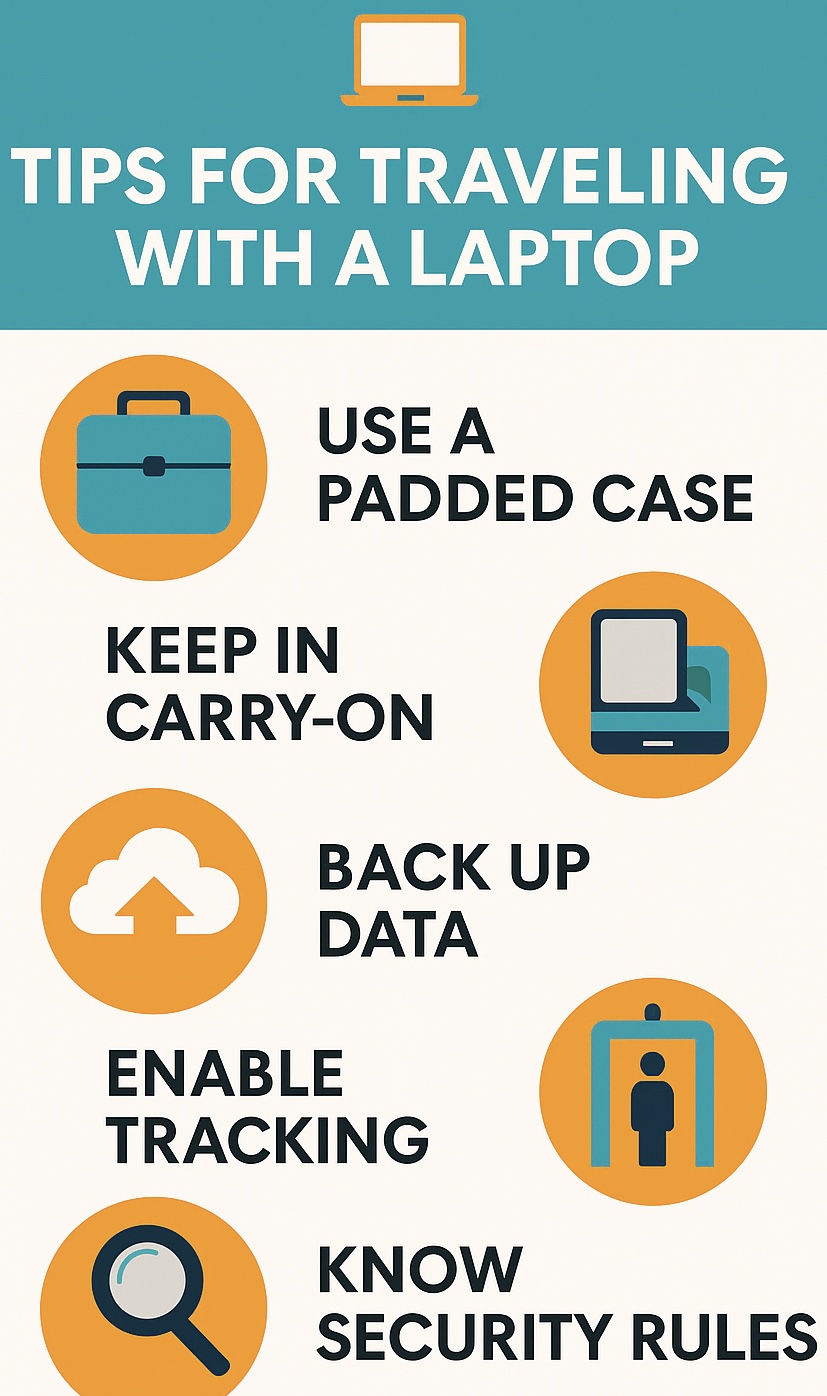
When traveling with a laptop, always pack it in a padded case to protect against bumps, and keep it in your carry-on to avoid damage or theft. Before departure, back up important files to the cloud or an external drive, and enable device tracking in case it’s lost. For airport security, be ready to remove the laptop from its bag during screening unless you have TSA PreCheck or a checkpoint-friendly case.

Categories
Tech and Troubleshooting

iPhone to Android

When switching from an iPhone to an Android device, it’s crucial to turn off iMessage on your old iPhone before moving your SIM card. If iMessage remains active, texts from iPhone users may continue being routed as iMessages and never reach your new Android device. To fix this, go to Settings → Messages → Toggle off iMessage, and also disable FaceTime to ensure proper SMS/MMS delivery.

Categories
Tech and Troubleshooting

Android to IPhone

When switching from an Android device to an iPhone, you should deregister and disable RCS (Rich Communication Services) on your Android before transferring your SIM. If RCS remains active, texts from Android users may continue using the chat protocol and fail to deliver properly to your new iPhone. To fix this, go to Messages → Settings → Chat Features → Toggle off RCS before switching.

Categories
Tech and Troubleshooting

Pong

Released in 1972 by Atari, Pong was the first commercially successful video game. Designed by Allan Alcorn as a training exercise, it simulated table tennis with simple two-dimensional graphics. The game’s popularity helped establish the video game industry, with its first arcade machine installed in Andy Capp’s Tavern in Sunnyvale, California

Categories
Tech and Troubleshooting

WI-FI Tech Fix

To fix the common Wi-Fi disconnect issue on the latest iOS update, go to Settings → Wi-Fi → Forget Network → Reconnect and toggle Low Data Mode off. This resolves 80% of reported cases

Categories
Tech and Troubleshooting

Nintendo – Mario Bros 3

In Super Mario Bros. 3 on the NES, you can get unlimited lives by repeatedly jumping on a turtle shell against a staircase in World 1-2, racking up extra 1-Ups.